LogoUnblur Image
  • Pricing
EnglishDeutschFrançais

Improve product photos with AI for sharper listings

Use this AI product photo enhancer to sharpen soft edges and bring out the textures shoppers want to see. Upload a photo or try the sample, then compare and download your result. Try Free HD without signing in.

Output mode
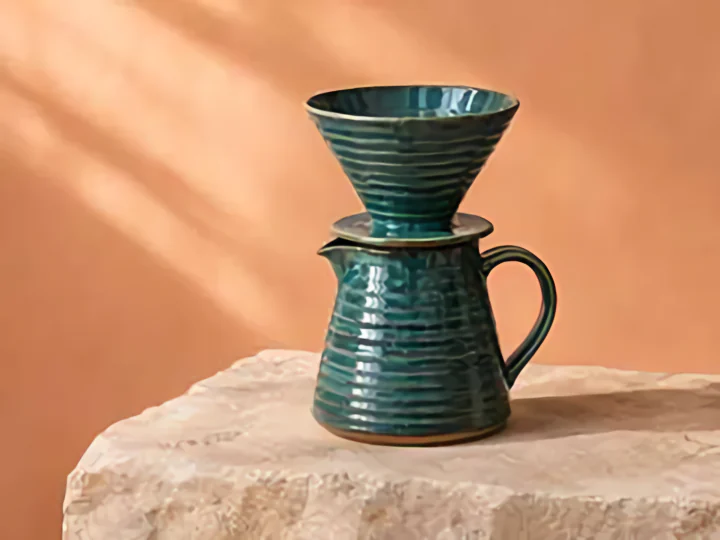
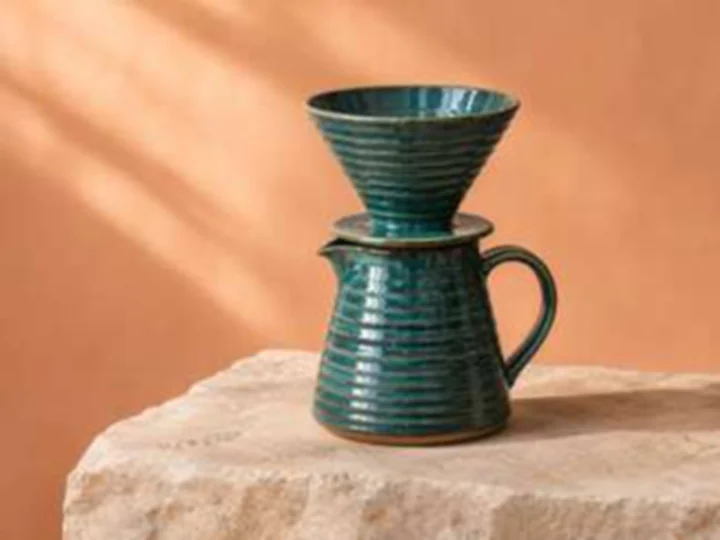
Tea-green ceramic pour-over pot and dripper against a warm peach background with enhanced glaze detail
Tea-green ceramic pour-over pot and dripper with soft glaze detail against a peach background

What you can improve in a product photo

Fix blurry product photos

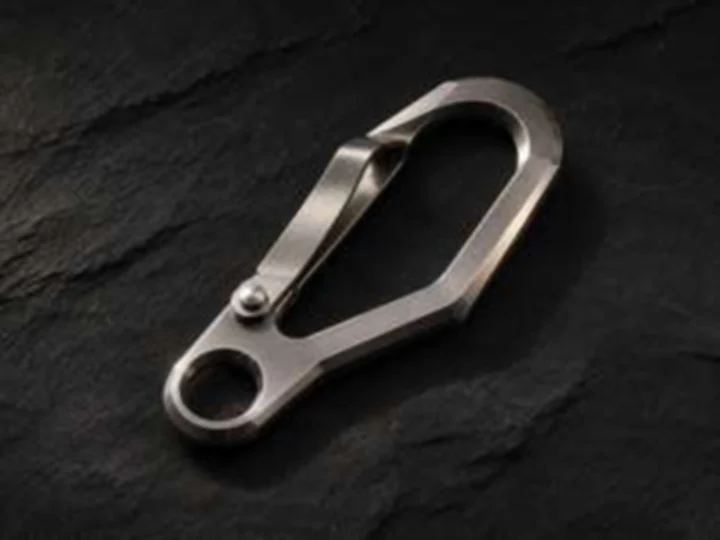
A silver clasp on a dark surface can lose the thin line that separates the hinge from the body. This happens in mildly soft camera photos and in small catalog files that have been shared or saved repeatedly. Start from the clearest file you have.

Try Free HD at original size to improve product photos with AI when the image already fits your layout. Move the comparison slider across the hinge and rim. Check whether the contours look clearer at the size customers will see.

For a heavily compressed JPEG, try Compressed Image Repair. Look at the metal highlights and the dark space around the clasp to see how clearly the outline stands out.
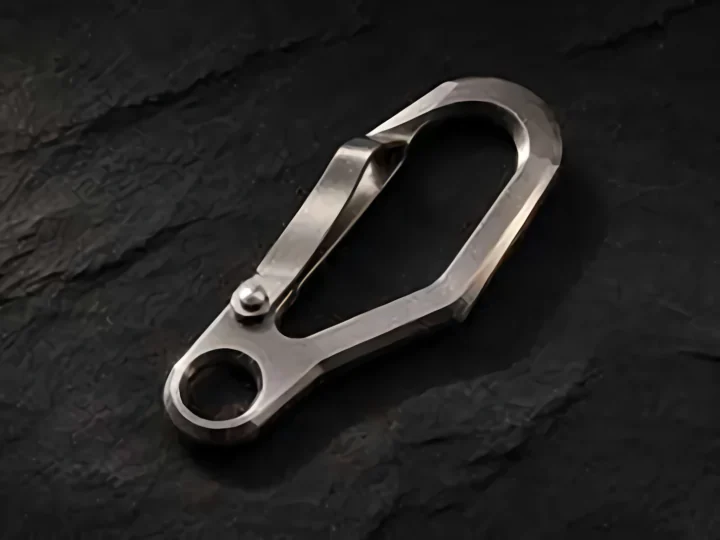
Silver clasp on dark slate with more distinct edges after enhancement
Silver clasp on dark slate with soft edges before enhancement

Show what the material looks like

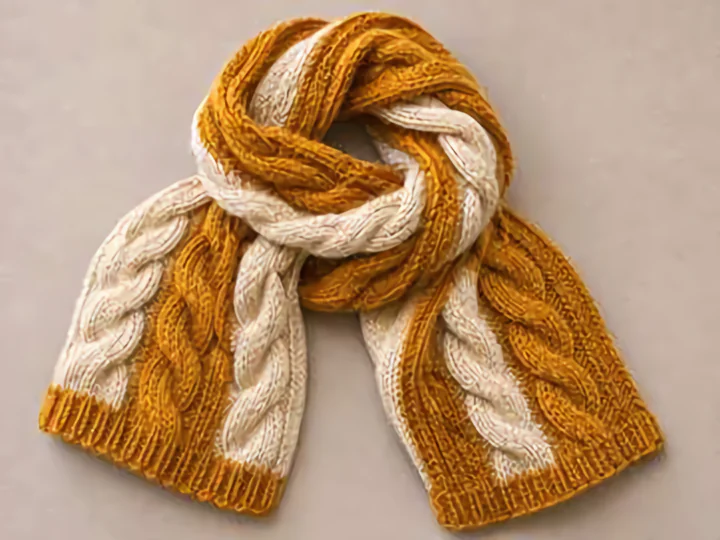
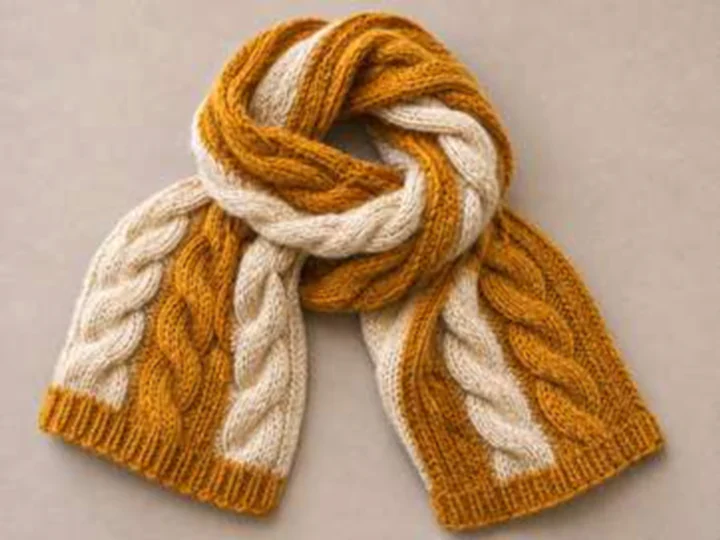
Texture helps buyers decide how a product might feel. In the knit scarf photo, look at the stitch loops, the gaps between them, and the soft fibers along the edge. Those details help a shopper judge how tightly the scarf is knit.

Improve product photos with AI to bring out knit loops, raised seams, and surface grain. Move the slider over the same patch of material to see how much more clearly you can distinguish the stitches and individual fibers.

Keep a full-product image in the gallery and use the detail shot alongside it. Open the close-up at the size shoppers will see to check whether the weave reads clearly.

Mustard knit scarf with enhanced loop and fiber detail
Mustard knit scarf with soft stitch detail in the original photo

Check labels and colors against the original

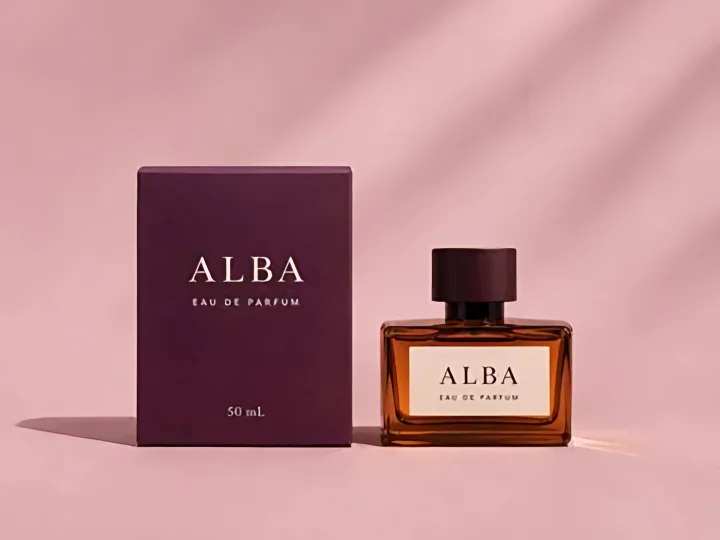
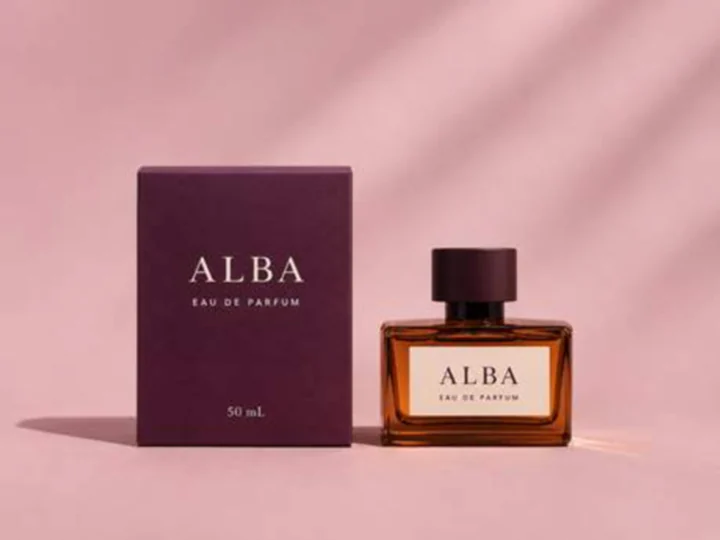
On a fragrance listing, buyers may read the carton and bottle to verify the scent or size. When you improve product photos with AI, compare the small lettering, label placement, bottle outline, and package color with the image you started with.

Try High Fidelity for a more conservative enhancement of packaging close-ups. When the bottle and box appear together, compare both at the same magnification to see how the lettering and finish read in the listing.

Focus on the details buyers use to tell variants apart, such as the scent name, bottle size, and carton color. A clear close-up alongside the main listing photo gives shoppers a better view of those details.

ALBA perfume bottle and box with enhanced edges and lettering
ALBA perfume bottle and box with soft lettering before enhancement

Upscale product images for ecommerce

Small supplier photos can look fine in a spreadsheet and turn soft when you crop them for a larger gallery. The chair example goes from 360 × 270 to 720 × 540 pixels. Check the cane weave and the outline as you compare.

Choose an output that fits the space where the photo will appear. Use 2× to double both dimensions, or select an available cloud output from 1K to 4K. The estimated dimensions in the tool help you pick the right size for your gallery.

View the enlarged image at the size you plan to publish. Check whether the important details survive the crop and keep a copy of the source for future edits.

The same walnut and cane chair enlarged to 720 by 540 pixels
Walnut chair with woven cane at 360 by 270 pixels

Work through a catalog in one batch

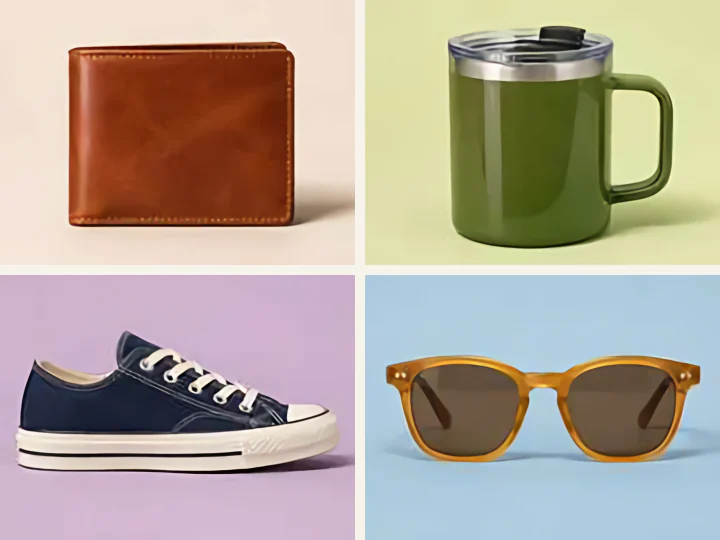
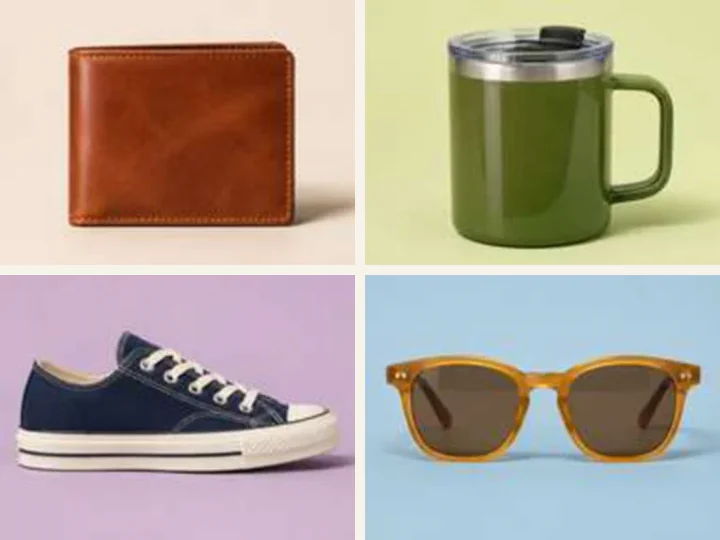
A catalog update can cover an assortment of products. Glossy sunglasses, a leather wallet, and a canvas sneaker each have different details to check. Before you process a full group, enhance a representative image and review the result at the size you plan to publish.

You can batch enhance product photos in groups of up to 20. Use one setting for images with similar size and quality. In a mixed set, start with the files that need the same treatment, then handle the photos that need a different output.

Open the completed results one at a time to check them against their originals. Download selected photos individually or save the completed batch as a ZIP. Match the files to your SKUs before replacing images in the store.

The same four catalog products with sharper edges and details
Catalog photos of a travel mug, leather wallet, canvas sneaker, and sunglasses before enhancement

How to improve product photos with AI

  1. 1

    Upload a product photo

    Drag a product photo into the upload area or pick a file. Choose Try a sample to see how the tool works before uploading.

  2. 2

    Run the enhancement

    Start with Free HD at the original size. Choose a different enhancement level or output size when needed, then click Enhance product photos.

  3. 3

    Compare and download

    Drag the slider across the part you wanted to improve. Save the result after you have checked its details and dimensions.

Where sharper product photos help

Shopify galleries and collections

If the source looks soft at its original size, try Free HD or use a clearer file. If the same image looks sharp on a Shopify product detail page and soft in a collection, check the thumbnail size your theme serves. A full-size file may already be available.

Handmade product close-ups

Give shoppers a clear texture photo alongside the full view of a ceramic piece, scarf, or leather bag. Compare the same part of the item in both versions, then choose the photo that shows the glaze, weave, or grain as it actually appears.

Secondhand listings

Bring out the condition details buyers look for in a secondhand listing, from worn corners to the finish on a metal fitting. Pair a clear close-up with the full view so buyers can see where each detail appears.

Why use Unblur Image?

Preview the difference before downloading

Improve product photos with AI and compare both versions in the same view. Start with one photo in Free HD to see how the details look, then choose the settings that suit the rest of your listing images.

See the cost upfront

Cloud modes show the credit total for your selection before processing. Check the cost for one photo first, then add more files after you have reviewed the output and settled on a mode and size.

Product photo enhancer FAQ

Can I improve product photos with AI for free?

Yes. Free HD at the original size needs no account or credits. Free 2× is available after signing in on supported devices.

Do I need a prompt?

Just upload a product photo and click Enhance product photos. The tool applies your selected level and output size automatically.

What file types do you support?

Upload JPG, PNG, or WebP files up to 12 MB each. Free HD exports PNG. Cloud downloads use the returned file format.

What output sizes can I download?

Free HD starts at the original size. Supported devices can use 2× after sign-in. Cloud options are 1K, 2K, and 4K, subject to source dimensions and mode.

Can I enhance product photos in bulk?

Yes. Add up to 20 images. Download completed results individually or save them together in a ZIP.

Can I use this tool on my phone?

Yes. Upload a product photo from your phone, compare the result with the original, and download it when you’re ready.

Which product photos benefit most from enhancement?

Try a shot with soft edges, a small supplier photo, or a close-up with muted texture. Start with one photo and use the slider to see the difference at the detail you care about.

Which mode should I use for packaging and labels?

Try High Fidelity for a more conservative enhancement of packaging photos. Compare the small print, logo edges, and colors with the original at full size before publishing.

Give your next listing a sharper photo

Improve product photos with AI and see the difference on your next listing. Upload one photo, compare the result, and download it when you’re ready.

Enhance my product photos

Related image tools

AI Image Upscaler

Make small images larger.

Compressed Image Repair

Clean up artifacts in compressed photos.

Unblur Image Bulk

Sharpen a group of blurry images.

LogoUnblur Image

Enhance blurry images online for free

Tools
  • AI Image Upscaler
  • Product Photo Enhancer
  • Unblur Image Bulk
  • Unblur Blurry Face in Photo
  • Unblur Text
  • Low Light Photo Enhancer
  • Old Photo Restoration
  • Image Upscaler for Printing
  • Pixelated Image Fixer
  • Compressed Image Repair
  • AI Image Denoiser
Resources
  • Changelog
Company
  • About
  • Contact
Legal
  • Acceptable Use Policy
  • Cookie Policy
  • Privacy Policy
  • Terms of Service
© 2026 Unblur Image. All Rights Reserved.